Mastering Next.js Menus: Server vs. Client Components Guide
Next.js Mastery Part 2 – Building a Dynamic Navigation Menu
In our first tutorial, we started with "Hello World." Now, it’s time to build something real. Every professional website needs a navigation menu that is fast, SEO-friendly, and easy to manage.
Today, we will build a Dynamic Header for Wisemix Media that fetches categories from a database and works perfectly on both Desktop and Mobile.
1. The Architecture: Server vs. Client
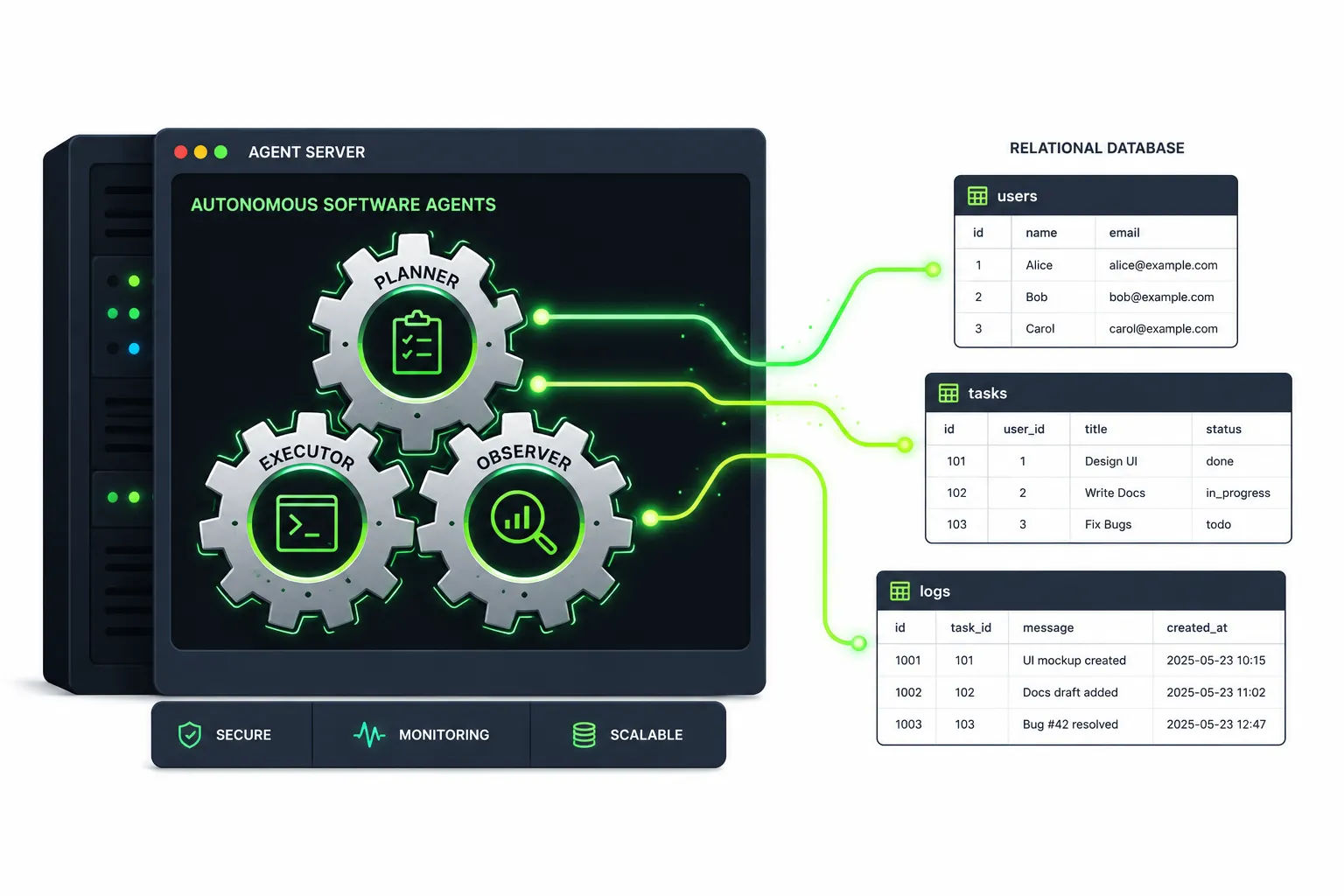
In Next.js, we use a "Hybrid" approach. We split our menu into two files:
Menu.jsx (Server Component): This handles the database work.
MenuClient.jsx (Client Component): This handles the "Snappy" interactivity like the mobile toggle.
File Structure
Plaintext
src/
└── components/
└── Header/
└── Menu/
├── Menu.jsx
└── MenuClient.jsx
2. The Implementation
Step 1: The Server Component (Menu.jsx)
This file talks to your database using Prisma. Because it's a Server Component, your database credentials stay safe and the data is fetched before the page even reaches the user.
Path: src/components/Header/Menu/Menu.jsx
JavaScript
import prisma from "@/lib/prisma";
import MenuClient from './MenuClient';
export default async function Menu() {
// Fetch categories from the database.
const categories = await prisma.category.findMany({
orderBy: { name: 'asc' },
});
return <MenuClient categories={categories} />;
}
Step 2: The Client Component (MenuClient.jsx)
This is where the magic happens. We use the 'use client' directive to enable React hooks like useState for the mobile menu.
Path: src/components/Header/Menu/MenuClient.jsx

JavaScript
'use client';
import Link from 'next/link';
import { useState } from 'react';
import { usePathname } from 'next/navigation';
export default function MenuClient({ categories }) {
const [open, setOpen] = useState(false);
const pathname = usePathname();
return (
<nav className="sticky top-0 z-50 h-16 bg-white border-b border-gray-200">
<div className="container mx-auto h-full px-4 flex items-center justify-between">
{/* LOGO */}
<Link href="/" className="flex items-center gap-2">
<span className="flex items-center justify-center w-9 h-9 rounded-lg bg-gray-900 text-white font-bold text-lg">
W
</span>
<span className="font-semibold text-lg md:text-xl text-gray-900">
WisemixMedia
</span>
</Link>
{/* DESKTOP MENU */}
<ul className="hidden lg:flex gap-8 text-sm font-medium text-gray-700">
<li>
<Link
href="/"
className={pathname === '/' ? 'text-gray-900 font-semibold' : 'hover:text-gray-900'}
>
Home
</Link>
</li>
<li>
<Link
href="/tools"
className={pathname.startsWith('/tools') ? 'text-gray-900 font-semibold' : 'hover:text-gray-900'}
>
Tools
</Link>
</li>
{categories.map((cat) => (
<li key={cat.id}>
<Link
href={`/category/${cat.slug}`}
className={pathname === `/category/${cat.slug}` ? 'capitalize text-gray-900 font-semibold' : 'capitalize hover:text-gray-900'}
>
{cat.name}
</Link>
</li>
))}
</ul>
{/* MOBILE TOGGLE */}
<button
onClick={() => setOpen(!open)}
className="lg:hidden w-9 h-9 flex flex-col justify-center items-center gap-1.5"
aria-label="Toggle Menu"
>
<span className={`w-6 h-0.5 bg-gray-900 transition ${open ? 'rotate-45 translate-y-1.5' : ''}`} />
<span className={`w-6 h-0.5 bg-gray-900 transition ${open ? 'opacity-0' : ''}`} />
<span className={`w-6 h-0.5 bg-gray-900 transition ${open ? '-rotate-45 -translate-y-1.5' : ''}`} />
</button>
</div>
{/* MOBILE MENU */}
<div className={`lg:hidden bg-white border-t border-gray-200 transition-all duration-300 overflow-hidden ${open ? 'max-h-96 opacity-100' : 'max-h-0 opacity-0'}`}>
<ul className="px-4 py-3 flex flex-col gap-3 text-sm font-medium text-gray-700">
<li><Link href="/" onClick={() => setOpen(false)}>Home</Link></li>
<li><Link href="/tools" onClick={() => setOpen(false)}>Tools</Link></li>
{categories.map((cat) => (
<li key={cat.id}>
<Link href={`/category/${cat.slug}`} onClick={() => setOpen(false)} className="capitalize">
{cat.name}
</Link>
</li>
))}
</ul>
</div>
</nav>
);
}
3. Key Terms Explained (Technical Glossary)
To understand this code, you need to know a few React terms:
Hook: A special function that lets you "hook into" React features.
useState: This is the Memory Hook. It helps the menu remember if it is open or closed. Imagine it like a light switch (ON/OFF).
usePathname: This is the GPS Hook. It tells the component exactly which page the user is viewing so we can highlight the active link.
Toggle: The action of switching between two states (e.g., clicking the button to open/hide the menu).
Snappy: A term for a UI that responds instantly. Our menu is snappy because the toggle logic happens right in the user's browser.
4. How to use it in page.js or layout.js
To make this menu appear on your site, simply import it into your layout.js (for all pages) or page.js.
JavaScript
import Menu from "@/components/Header/Menu/Menu";
export default function Layout({ children }) {
return (
<>
<Menu />
{children}
</>
);
}
Conclusion
By combining Server Components and Client Components, we’ve created a menu that is fast for users and great for SEO. This is the foundation of building high-performance apps with Next.js 15.